
Djobzy is here to help you get started with your first job posting or project. It doesn’t have to feel stressful, it is simple and easy to begin. This guide will show you, step by step, how to Post a Job on Djobzy in a simple way so your job posting can reach the right talent without any confusion.
In this article we’ll go through the seven steps needed to post a job on Djobzy.
- Title and Description
- Categories
- Details of Contract
- Attachments
- Duration of Contract
- Budget
- Reviewing and Publishing
Learn how to post a job on Djobzy in 7 simple steps. This guide explains how to write a clear title and description, choose the right categories, add contract details, upload attachments, set the duration and budget, and review your job post before publishing.
Table of contents
Estimated reading time: 10 minutes
A good job posting helps people find the right Freelance Jobs, and Djobzy makes it easy to explore different Job Categories. When you use Djobzy for your job posting it becomes visible to people looking for Freelance Jobs across many Job Categories.
Before you start, think clearly about your job post goal on Djobzy. A strong job posting will attract better Freelance Jobs applicants, especially when placed under the right Job Categories. Many users rely on Djobzy because posting a job is fast and simple, and every job posting is matched with relevant Freelance Jobs through proper Job Categories.
7 steps to post a job
Don’t forget to log in
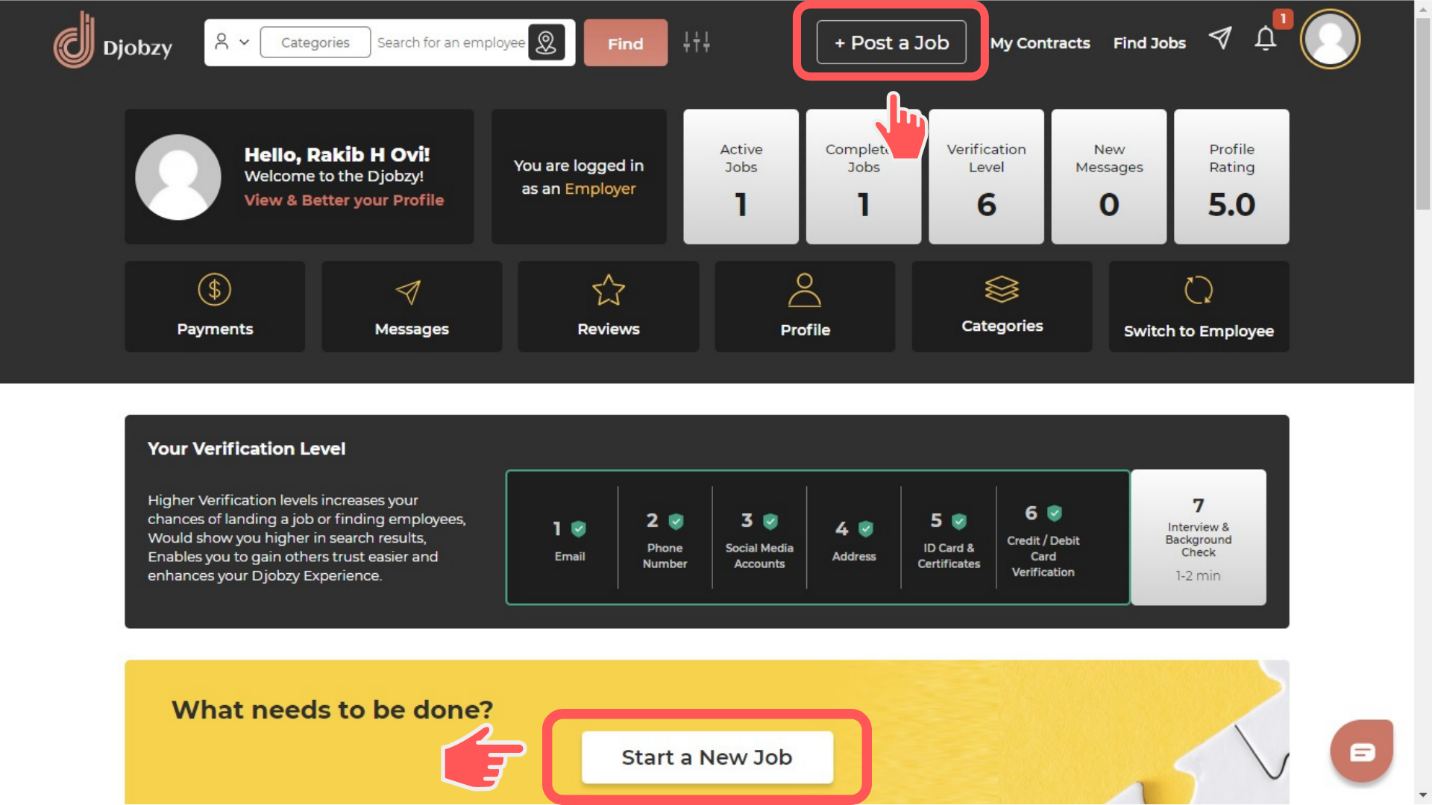
To start, log in to your Djobzy account. On your home page you will see a text to create a job ‘Post a Job’ and ‘Start a New Job’ you can use either one.

After clicking, you will be taken to the job creation page where you can start your job post on Djobzy.
You will see a text Use Template , this portion here if you click it is very helpful if you want to post a job similar to one you created before. Let say you already posted a Social Media Manager role before and now need another one for a different area, by clicking using a template saves time. It keeps the same description from your previous job post, and you can simply edit the details.

But if this is your first time using Djobzy to post a job, then you can start filling in the details needed. Let’s start with the first step.
Step 1: Title and Description
Cross off the pop-up and you will see the boxes asking for a title and a description of your job.

This is one of the most important texts of your job posting, it helps applicants quickly understand what kind of work you are offering. Most of the applicants search for freelance jobs check the title first before opening the full post. Your title should be short, clear, and direct.
For example:
- Good title: “Graphic Designer for Social Media Ads”
- Not clear: “Need Someone ASAP”
A direct/ clear title helps your job post appear in the right job categories and attracts the right people on Djobzy. Simple and honest details help applicants decide faster if your freelance jobs offer matches their skills. A strong job post on Djobzy makes it easier to find the right person and improves your chance of getting better applications.
After that, scroll down and click the Next button to continue.

2. Categories
On the next page you will be asked to choose a category.

In Djobzy, choosing the right job categories is important when you post a job. Your job posting will be shown to the right people searching for freelance jobs.
A correct job categories selection helps your Djobzy job post reach the right audience. Many freelance jobs seekers filter by job categories before applying to any job posting.
Always double-check your job categories so your job post on Djobzy connects with the right freelance jobs talent through proper job posting visibility.
3. Details of Contract
Everything in this section is optional however it can help to clarify your job post.

In this part of your Djobzy job posting, you can clearly explain what you need for your job post request so the right people can find it under the correct job categories.
Start by writing the key requirements of the job. It helps to include the main skills needed, like full-stack web development, Photoshop CC, or any other specific expertise related.
If your job posting needs a certain language (for example in translation work), you can add it in the language box. You can also choose the level of fluency such as Basic, Medium, or Fluent so your job post on Djobzy is more accurate for the right candidates.
If the work is location-based, you can add the address in the Address box. This is useful for freelance jobs like driver or nanny services where the job depends on a specific place. Just type the address and select from the suggestions that appear.
Once everything looks good, click Next to continue your job posting on Djobzy
4. Attachments
Let’s imagine you need an Architecture to design something but you have already created some initial designs and you want to discuss those or build the design upon the initial ideas. How can you show the ideas you put down already? That’s where the Attachment section comes in you can upload your MS word/Pdf/Image files here so the potential employee can see and have a lucid idea of what you need. A strong job posting with attachments on Djobzy makes your job post easier to understand, this step supports your Djobzy job post by adding clarity to your job posting because applicants can see exactly what you are looking for.
The maximum file size for each attachment is 30 MB.
- Accepted file formats are:
jpg, jpeg, doc, docx, pdf, and png - These file formats are not accepted:
svg, mp4, mov, and mkv
Also note that the attachments are optional. If you don’t have anything to attach don’t worry at all. Please remember that if you attach something please mention that in the job description so the applicants may check out your files prior to applying.

Once you are done with the Attachments section click the Next button at the bottom of the page.
5. Duration of Contract
This section is all about time. You can select either Short-term (less than 10 days) or Long-term (more than 10 days). For the Short-term you will get the options to select from 1 day or less 1-7 days or any custom number of days of your liking. For Long-term jobs you will get the options to select from 1 month or less 1-3 months or any custom number of months of your liking. Pretty straightforward.
You must set the timeline for your Job Posting. This helps people in freelance jobs understand the work duration and match the right job categories.
A clear timeline improves your Djobzy job posting and makes your job post more attractive to freelance jobs applicants browsing job categories.

Click the Next button at the bottom of the page when you are done.
6. Budget
Your budget is a key part of your job posting on Djobzy. When you post a job, it helps attract the right freelance jobs candidates from the correct job categories. People looking for freelance jobs on Djobzy often check pay first before applying to any job posting under specific job categories.

Let me explain if you want to hire an employee based on an hourly rate use the Hourly Rate box (mostly used for long-term jobs) then in the Fixed Rate box put the total offering of the job. We will calculate the hours needed to complete the job based on the inputs.
Or if you want to hire an employee based on a fixed amount use the Fixed Rate box to put what the hourly rate is going to be. We will calculate the hours needed to complete the job post based on the inputs. You can use Ranges if you are not sure. Also you can change your bid later as well.
When you are done click the Next button at the bottom of the page.
7. Reviewing and Publishing
In this very last stage you are going to review and see whether everything is alright.
When you are done checking go to the bottom of the page submit the captcha (only a checkbox saying “I’m not a robot”) and then click on the Publish button… and voila! Your job is posted.
Now it’s time to wait till the potential employees start submitting their proposals/applications to your job post.
Read More: A Complete Guide to Pre-Employment Background Checks
FAQ
First, log in to your Djobzy account and click Post a Job. After that follow the 7-step process.
Yes definitely, Djobzy has a “Use templates” option. This is helpful if you often Post a Job with similar details.
Please write a clear/direct and simple title that explains the role. For example, “ Looking for Customer Service Representative” is better than “Hiring Now.”
You can browse the list or use the search bar to find the best match for your Job Post. choosing the right job categories is important when you post a job. Your job posting will be shown to the right people searching for freelance jobs.
Yes definitely, the maximum file size for each attachment is 30 MB.
Accepted file formats are: jpg, jpeg, doc, docx, pdf, and png
These file formats are not accepted: svg, mp4, mov, and mkv
Short-term contracts are usually for work that takes less than 10 days. Long-term contracts are for projects that last more than 10 days and can continue for weeks or even months depending on the work.
It has 2 options, either you can select an hourly rate or just a fixed rate.
Yes, you can after completing all the details, you can also click the back button if you want to edit it. After you confirm just click Publish to make your Job Post live.
Once someone applies to your Job Post, you will receive a notification and received a chat message in your Djobzy chat and also by email. Then you can review the applicants’ proposal and profile.
Yes, simple to follow. Thanks for sharing.
Good to hear that Nasir, thank you for taking the time to read the article.